Welcome to the exciting world of WordPress! If you're looking to create your own website, you've come to the right place. This comprehensive guide will walk you through every step, from setting up your site to boosting its visibility online. You don't need any prior coding knowledge; we'll break down everything in easy-to-understand terms. Let's get started on building your amazing online presence! Whatsapp Marketing
Table of Contents
What Exactly is WordPress, Anyway?
Choosing Your Digital Home: Domain Name and Hosting
Bringing WordPress to Life: Installation Made Easy
Your Command Center: Navigating the WordPress Dashboard
Dressing Up Your Site: Understanding and Installing Themes
Adding Superpowers: Plugins and Their Magic
Crafting Your Content: Pages and Posts Explained
Making it Yours: Customizing Your Website's Look
The Heart of Blogging: Categories, Tags, and Comments
Getting Found: Essential SEO Strategies for WordPress
Keeping Your Site Safe: Security and Backups
Ready for the World: Launching Your Website and Beyond
1. What Exactly is WordPress, Anyway?
Before we dive into the how-to, let's understand what WordPress is and why it's such a fantastic choice for beginners and pros alike. Simply put, WordPress is a free, open-source content management system (CMS) that allows you to create, manage, and publish website content without needing to write complex code. Think of it as the engine and framework for your entire website, making it easy to handle everything from text to images and videos. Best Chatgpt Prompts For Faster Writing
One important distinction to know is between WordPress.org and WordPress.com. For this tutorial, we're focusing on WordPress.org, which is the self-hosted version. This means you download the free WordPress software and install it on your own web hosting account, giving you complete control, full customization freedom, and total ownership of your site and data. WordPress.com is a hosted service that handles technical aspects but comes with more limitations, so for maximum flexibility, WordPress.org is the way to go. Monetization
WordPress powers over 43% of all websites on the internet, from personal blogs to Fortune 500 companies. Its popularity stems from its incredible flexibility, a vast library of themes and plugins that extend its functionality, and a user-friendly interface that's surprisingly beginner-friendly. You'll quickly discover why so many people choose WordPress for their online ventures! Telegram Metrics
2. Choosing Your Digital Home: Domain Name and Hosting
Every website needs two fundamental things to live on the internet: a domain name and web hosting. Your domain name is essentially your website's address on the internet (like "yourwebsite.com"), making it easy for people to find you. Web hosting, on the other hand, is where all your website's files and data are securely stored, allowing them to be accessible online 24/7. To use a simple analogy, think of your domain name as your street address and the hosting as the land your house sits on. Talk Whatsapp
When you're ready to choose a domain name, aim for something memorable, easy to type, and relevant to your brand or the content you plan to share. You can purchase a domain name from a dedicated domain registrar, or often, many web hosting providers will include a free domain name when you sign up for their hosting services. This can be a convenient option, as it keeps everything neatly under one roof. Ai And Quora
Selecting a reliable web hosting provider is an absolutely crucial step for your site's performance, security, and the level of support you'll receive. As you're starting out, look for hosts that offer excellent uptime (meaning your site is almost always online), responsive customer support, and, most importantly for beginners, a simple one-click WordPress installation option. Many popular hosts provide optimized WordPress hosting plans specifically designed to make your setup process incredibly smooth and hassle-free. Social Media Roi
3. Bringing WordPress to Life: Installation Made Easy
Once you've secured your perfect domain name and chosen a reliable web hosting provider, it's time to bring your vision to life by installing WordPress. Now, this might sound a bit technical, but don't fret! Most modern hosting providers have made this process incredibly easy, often featuring a fantastic "one-click" installation option. This method is a beginner's best friend, as it handles all the complex technical configurations automatically, saving you a lot of time and potential headaches. Ai Writing Assistant
To utilize the one-click installer, you'll typically log into your hosting account's control panel, which is often called cPanel. Once inside, navigate to a section that might be labeled "Websites," "WordPress installer," or "Softaculous." From there, just follow the straightforward prompts. You'll usually be asked to select your domain, set up some basic information like a site title, choose an admin username (remember to avoid the generic "admin" for security reasons!), create a strong password, and provide your admin email address. The entire installation usually wraps up in just a few minutes. Snapchat Advertising
After the installation is complete, your hosting provider will furnish you with a direct link to your WordPress dashboard (which is typically "yourdomain.com/wp-admin") along with your brand-new login credentials. With these in hand, you can confidently log into your fresh WordPress site and begin exploring its capabilities! While a manual installation option exists involving downloading WordPress, creating a database, and uploading files via FTP, the one-click method is overwhelmingly preferred for its unmatched simplicity and speed, especially for those new to WordPress.
4. Your Command Center: Navigating the WordPress Dashboard
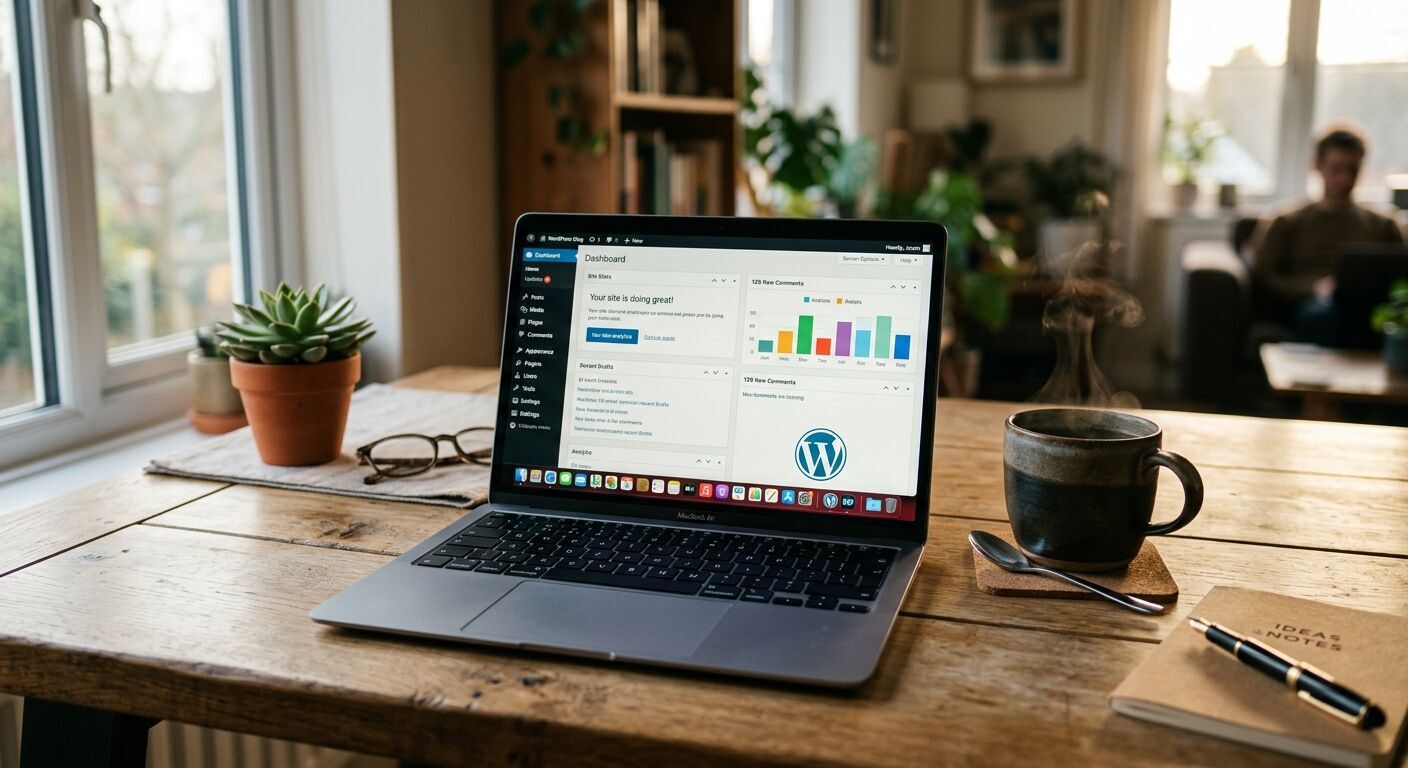
Congratulations, you've successfully installed WordPress! Now, it's time to get acquainted with your WordPress dashboard, which is essentially your central hub for managing every single aspect of your website. You can easily access it by typing "yourdomain.com/wp-admin" into your web browser and entering the username and password you so carefully created during the installation process.
The dashboard's left-hand sidebar is your primary navigation system, offering quick access to all the important areas of your site. Here, you'll find links to manage various parts of your website:
Posts: This is where you'll create and manage all your blog articles and news updates.
Pages: For static, evergreen content such as your "About Us," "Contact," or "Services" pages.
Media: A dedicated library where all your images, videos, audio files, and other uploads are stored.
Comments: To review and manage discussions and feedback from your readers on your posts.
Appearance: Your go-to section for controlling your site's design, including themes, customization options, widgets, and menus.
Plugins: Where you'll add and manage extensions that boost your site's functionality.
Users: If you have a team, this is where you manage accounts for multiple contributors, authors, or editors.
Tools: Contains utilities for importing/exporting content, checking site health, and more.
Settings: To configure core WordPress functionalities, from site title to permalink structure.
Take some time to really explore these areas. Don't be afraid to click around – you won't break anything! Familiarizing yourself with the dashboard is absolutely key to comfortably and confidently managing your website. You can also easily update basic settings like your site title, tagline, time zone, and your site's permalink structure (how your URLs are formatted) directly from the "Settings" menu.
5. Dressing Up Your Site: Understanding and Installing Themes
Your website's entire appearance and feel are dictated by its theme. A WordPress theme is a sophisticated collection of files that work harmoniously to establish the design, layout, and overall visual appeal of your site. It plays a significant role in how your content is presented to visitors and contributes heavily to your site's overall user experience. Whether your goal is to build a personal blog, a professional business site, an impressive portfolio, or even a bustling online store, rest assured there's a perfect theme out there waiting for you.
You'll find literally thousands of themes available, spanning both free and premium (paid) options. Free themes are conveniently accessible directly through your WordPress dashboard, making them incredibly easy to browse and install. Premium themes, on the other hand, are typically purchased from third-party developers and specialized marketplaces, often offering more advanced features, dedicated support, and unique designs. When you're choosing a theme, make sure to consider its responsiveness (how gracefully it adapts to different devices like phones and tablets), its load speed, the specific features it offers, and always check user reviews for insights into its quality and support.
To install a theme, simply navigate to Appearance > Themes in your WordPress dashboard. From there, you can click "Add New" to explore the vast WordPress.org theme directory. Here, you can easily preview themes, and install them with just a single click. If you've opted for a premium theme that you've downloaded as a .zip file, you'll use the "Add New" > "Upload Theme" option. Once installed, it's a crucial final step to always click "Activate" to apply the theme to your site and see your new design come to life.
6. Adding Superpowers: Plugins and Their Magic
While themes beautifully dictate your site's visual look and feel, plugins are truly like adding powerful apps to your WordPress website; they are designed to extend its functionality in almost limitless ways. Ever wanted to seamlessly add a contact form, significantly improve your site's search engine optimization (SEO), enhance its security against online threats, or even transform it into a full-fledged online store? There's almost certainly a plugin for anything you can imagine! The official WordPress plugin directory alone boasts over 50,000 free plugins, plus there are countless premium (paid) options available from third-party developers.
Installing plugins is a very straightforward process, designed to be user-friendly. Just head over to Plugins > Add New in your WordPress dashboard.
For free plugins: Use the convenient search bar to find the specific plugin you need (for instance, try searching for "Yoast SEO" or "WPForms"). Once you've located it, simply click "Install Now," and then make sure to click "Activate" to enable it on your site.
For premium plugins: If you've purchased a plugin and downloaded it as a .zip file, you'll click the "Upload Plugin" button located at the top of the "Add New" page. Choose your downloaded .zip file, click "Install Now," and then, again, remember to click "Activate."
It's paramount to always ensure you install plugins only from trusted sources to maintain your site's security and optimal performance. For any new site, some essential plugins you might want to consider include a robust SEO plugin (like Yoast SEO or Rank Math), a reliable security plugin to protect your site, a dependable backup plugin for peace of mind, and a user-friendly contact form plugin to facilitate communication.
7. Crafting Your Content: Pages and Posts Explained
At the very heart of any compelling website is its content, and in the world of WordPress, content primarily comes in two distinct but equally important forms: pages and posts. Understanding the key difference between these two content types is absolutely fundamental to structuring your site effectively and making it easy for your visitors to navigate.
Posts are typically utilized for timely, blog-style content that is usually displayed in reverse chronological order, meaning the newest articles appear first. They are inherently designed for dynamic content, can be easily categorized and tagged for organization, and often include a comments section to encourage reader engagement. Think of posts as your news articles, regular blog entries, or frequent updates that you want to share with your audience.
Pages, in contrast, are generally reserved for static, evergreen content that doesn't change frequently and is not time-sensitive. Excellent examples include your "About Us" page, "Contact Us" page, a "Services" or "Portfolio" page, or a custom homepage that you design. Unlike posts, pages typically do not have categories or tags, nor are they usually ordered by date, as their content remains relevant over longer periods.
To create new content, simply navigate to either Posts > Add New or Pages > Add New in your WordPress dashboard. WordPress now uses the powerful Block Editor, often affectionately called Gutenberg, which revolutionizes content creation. This editor allows you to build and arrange your content using versatile "blocks" for everything from paragraphs and headings to images, videos, and more. You simply click the "+" icon to add new blocks, type your content, and then use the intuitive block settings located in the right sidebar to customize it to perfection. Once you're satisfied, you have the option to save your work as a draft, preview it to see how it looks, or confidently hit "Publish" to make it live for the world to see!
8. Making it Yours: Customizing Your Website's Look
Once you have your theme installed and a good chunk of your basic content in place, the next exciting step is to personalize your website to truly reflect your unique brand or personal vision. WordPress offers several powerful and user-friendly ways to customize your theme, ranging from simple visual tools that require no coding to more advanced modifications for those who enjoy a deeper dive.
For the majority of visual changes, you'll primarily be using either the WordPress Customizer or the newer Site Editor, depending on whether your theme is a classic or a modern block-based theme.
The WordPress Customizer (found under Appearance > Customize): This fantastic tool provides a live preview of your site on the right side of the screen, with a comprehensive set of customization options neatly organized on the left sidebar. Here, you can typically make a wide array of changes: adjust your site title and tagline, easily upload your unique logo and a site icon (favicon), fine-tune your colors and fonts, set up your navigation menus, manage widgets (those small blocks of content often found in sidebars or footers), and define how your homepage is displayed (either as a static page or your latest blog posts).
The Site Editor (found under Appearance > Editor): If you're utilizing a newer, block-based theme (like WordPress's default Twenty Twenty-Two or Twenty Twenty-Three themes), the traditional Customizer might be replaced by the more integrated Site Editor. This innovative editor allows for full site editing using the same block system you use for posts and pages, giving you incredibly granular control. You can directly edit and customize your site's templates, global styles, headers, footers, and even page content, all from a seamless visual interface.
For those who crave more advanced customization, such as making very specific design tweaks that aren't available through your theme's built-in options, you might consider adding custom CSS code. This can often be done directly via the Customizer or the Site Editor's "Additional CSS" section. Alternatively, a best practice for significant modifications is to create a "child theme." A child theme allows you to make extensive changes without directly altering the parent theme's core files, ensuring that your precious customizations aren't lost when the parent theme receives an update.
9. The Heart of Blogging: Categories, Tags, and Comments
If blogging is going to be a core, vibrant part of your website, then thoroughly understanding and effectively utilizing categories, tags, and comments will be absolutely essential. These features are not just about organizing your content; they are crucial for enhancing both user experience and significantly boosting your search engine optimization (SEO). Mastering them will help you present your content clearly and build a lively community around your writing.
Categories: Think of categories as the broad, overarching groupings for your blog posts. They represent the main topics or fundamental sections of your blog, providing a hierarchical structure. For example, on a food blog, your categories might be "Breakfast," "Lunch," "Dinner," and "Desserts." Every post should ideally belong to at least one category, and you can easily create and manage them by navigating to Posts > Categories in your dashboard.
Tags: While categories offer broad strokes, tags are much more specific keywords or micro-topics that precisely describe the content of an individual post. If categories are like a book's table of contents, tags are more akin to its index. For a "Desserts" post, relevant tags might include "chocolate chip," "cookies," "easy recipe," or "baking." You have the flexibility to add tags conveniently while you're writing a post, or you can manage them centrally under Posts > Tags.
Comments: WordPress comes equipped with a fantastic built-in commenting system that empowers your readers to actively engage with your posts, ask questions, and share their thoughts. You can efficiently manage all reader comments under the Comments section in your dashboard. Here, you have full control to approve, unapprove, reply to, edit, or delete comments as needed. It is important to actively moderate comments to maintain a positive, constructive, and spam-free environment for your community.
By properly using categories and tags, you make it significantly easier for your readers to find related content they're interested in, thereby increasing their time on your site. Furthermore, these organizational elements signal to search engines the key topics your site covers, which can aid in better indexing. Effectively managing comments encourages lively interaction and helps foster a strong, engaged community around your valuable content.
10. Getting Found: Essential SEO Strategies for WordPress
Having a beautifully designed website filled with amazing content is a fantastic achievement, but what if no one can actually find it? That's precisely where Search Engine Optimization (SEO) steps in! SEO is the strategic practice of optimizing your website so that it ranks higher in search engine results (like Google), ultimately leading to more organic traffic – meaning more people discover your site naturally. The great news is that WordPress is already highly SEO-friendly "out of the box," but there are many proactive steps you can take to significantly boost your rankings and online visibility.
Here are some essential SEO strategies you should implement for your WordPress site:
SEO-Friendly URLs (Permalinks): This is one of the very first and most crucial settings to get right. Go to Settings > Permalinks and choose the "Post name" option. This creates clean, descriptive URLs that are excellent for both users and search engines, making your links more readable and understandable.
Install an SEO Plugin: For beginners, a dedicated SEO plugin like Yoast SEO or Rank Math is absolutely indispensable. These powerful plugins provide guided tools to help you optimize your content, automatically generate essential XML sitemaps (which help search engines crawl your site), and manage critical meta descriptions and title tags for each page and post.
Keyword Research: Start by understanding what terms and phrases your target audience is actively searching for online. Utilize keyword research tools to discover relevant keywords and then naturally integrate them into your content, titles, and headings. Often, focusing on "long-tail keywords" (more specific, multi-word phrases) can be highly effective, as they typically have lower competition and indicate higher user intent.
Optimize Content: Always strive to write high-quality, in-depth, and genuinely helpful content that directly addresses your users' questions and needs. Make sure to include your target keywords in your title and within the first 100 words of your post or page, but always prioritize natural readability over keyword stuffing.
Title Tags and Meta Descriptions: These are the snippets that appear in search engine results. Use your SEO plugin to craft compelling title tags (ideally 50-60 characters) and persuasive meta descriptions (around 150-160 characters) that include your keywords and strongly encourage users to click through to your site.
Image Optimization: Large images can significantly slow down your site, negatively impacting both user experience and SEO. Always compress and resize your images to reduce their file size without sacrificing quality. Crucially, use descriptive filenames and consistently add "alt text" to describe each image. Alt text not only helps search engines understand your image content but also vastly improves accessibility for visually impaired users.
Internal and External Linking: Strategically link to other relevant pages and posts within your own site (internal links). This improves your site's structure, helps search engines discover more of your content, and enhances user navigation. Additionally, link out to reputable, authoritative external sources when appropriate, as this can add credibility to your content.
Site Speed: A fast-loading website is paramount for both a positive user experience and achieving higher SEO rankings. Ensure you choose fast and reliable hosting, use well-coded, lightweight themes and plugins, and always optimize your images. Tools like Google PageSpeed Insights can help you identify areas for improvement.
Mobile-Friendliness: With the majority of internet users browsing on smartphones, it's absolutely critical that your website looks and functions flawlessly on all devices. Google prioritizes "mobile-first indexing," meaning it primarily uses the mobile version of your content for ranking. Fortunately, most modern WordPress themes are responsive by default, automatically adjusting to different screen sizes.
11. Keeping Your Site Safe: Security and Backups
Your website is a valuable asset, representing your hard work, content, and potentially your business. Protecting it from online threats is just as crucial as the effort you put into building it. While WordPress is inherently a secure platform, like any software, it can become vulnerable if not properly maintained. Therefore, implementing strong security measures and establishing a routine for regular backups are non-negotiable steps to safeguard your hard work and ensure peace of mind.
Website Security:
Strong Passwords: This is foundational. Always use complex, unique passwords for your WordPress admin account, your hosting account, and your database. Consider using a password manager to generate and store them securely.
Security Plugin: Install a reputable security plugin right away. Options like Wordfence or Sucuri offer comprehensive protection, including malware scanning, robust firewall protection, and enhanced login security features that can thwart brute-force attacks.
Regular Updates: Make it a habit to keep your WordPress core software, all themes, and all plugins updated as soon as new versions are released. Updates frequently include vital security patches that fix newly discovered vulnerabilities, protecting your site from exploits.
SSL Certificate: Ensure your site uses HTTPS (you'll see a padlock icon in the browser address bar). An SSL certificate encrypts data transferred between your site and its visitors, which is not only crucial for security and trust but also a recognized Google ranking factor. Many hosting providers now offer free SSL certificates, making this an easy win.
Limit Login Attempts: Plugins can significantly help prevent brute-force attacks – where malicious bots try to guess your login credentials repeatedly – by limiting the number of failed login attempts allowed within a certain timeframe.
Backups:
Regular Backups: Accidents happen, data can be corrupted, or servers can fail. Regularly backing up your entire website (both your website files and your database) is your ultimate safety net, allowing you to quickly restore your site if something goes wrong.
Backup Plugins: Utilize a dedicated backup plugin like UpdraftPlus or Duplicator. These tools can automate your backup schedule, allowing you to set them and forget them, and crucially, they can store your backups in secure offsite locations such as Google Drive, Dropbox, or Amazon S3.
Host Backups: Many reliable hosting providers offer daily or weekly backups as part of their service. While these are great, it's always a wise strategy to have your own independent backup solution as a secondary measure. This provides an extra layer of protection, ensuring you always have a copy of your site.
Think of security and backups as your website's essential insurance policy. They provide invaluable peace of mind and are absolutely vital for the long-term health, stability, and survival of your online presence.
12. Ready for the World: Launching Your Website and Beyond
You've put in the hard work: you've built your WordPress website, lovingly customized its appearance, diligently added compelling content, and implemented crucial security measures. Now, the incredibly exciting moment has arrived – it's time to share your creation with the world! Before you officially hit the launch button, here's a quick, essential checklist to ensure everything is perfect:
Review All Content: Take the time to meticulously check every page and post for any typos, grammatical errors, broken links, or outdated information. Ensure all your content is accurate, engaging, and polished.
Test Responsiveness: View your site on a variety of devices – desktops, tablets, and different smartphone models – to confirm that it looks and functions flawlessly across all screen sizes and orientations.
Check Forms: Thoroughly test all contact forms, opt-in forms, and any other interactive elements to ensure they are working correctly and successfully sending submissions to the right email addresses or databases.
SEO Check: Double-verify that your SEO plugin is correctly configured, your permalinks are set to "Post name," and your XML sitemap has been generated and submitted (or is ready to be submitted) to search engines.
Delete Default Content: Remove any default "Hello World!" posts, sample pages, or unused themes and plugins that came with the WordPress installation to keep your site clean and optimized.
Google Analytics & Search Console: Set up Google Analytics to start tracking valuable visitor behavior and insights, and connect your site to Google Search Console to monitor its performance in search results and identify any potential issues.
Once you're completely confident that everything is in perfect order, you're officially ready to make your site publicly accessible. If you had a "Coming Soon" or "Maintenance Mode" plugin activated during development, remember to disable it to reveal your brilliant new website to the world!
Launching your website is a huge accomplishment, but it's important to remember that it's just the beginning of your online journey. A truly successful website requires ongoing effort and dedication:
Regularly create new, high-quality content that resonates with your audience.
Continuously monitor your site's performance and SEO to stay competitive.
Always keep WordPress core, themes, and plugins updated for security and new features.
Actively engage with your audience through comments and social media to build a community.
You've got this! WordPress is an incredibly powerful, flexible, and scalable platform that will grow right alongside you and your evolving online presence. Enjoy the journey!
FAQ
Q1: Is WordPress truly free to use?
A1: The WordPress software (WordPress.org) is completely free to download and use. However, you will need to pay for a domain name and web hosting to make your website live on the internet. You might also choose to invest in premium themes or plugins, but a fully functional website can be built using free options.
Q2: Do I need to know how to code to use WordPress?
A2: No, absolutely not! WordPress is designed to be user-friendly for beginners without coding knowledge. You can build and customize a professional website using its intuitive dashboard, block editor, and theme customization options. More advanced customizations might involve code, but they are not necessary for getting started.
Q3: What's the difference between a page and a post in WordPress?
A3: Pages are for static, evergreen content like an "About Us" or "Contact" page, while posts are for dynamic, chronological content like blog articles or news updates. Posts often have categories, tags, and comments, which pages typically do not.
Q4: How do I make my WordPress website appear in Google searches?
A4: To appear in Google searches, you need to implement SEO strategies. This includes installing an SEO plugin, optimizing your content with keywords, ensuring fast loading times and mobile-friendliness, using descriptive URLs, and building internal and external links. Submitting an XML sitemap to Google Search Console also helps.
Q5: How often should I update WordPress, themes, and plugins?
A5: You should update WordPress core, themes, and plugins regularly as soon as updates are available. These updates often include important security patches, bug fixes, and new features, which are vital for your site's security and performance.
Key Takeaways
WordPress.org offers unparalleled flexibility and control for building any type of website, from personal blogs to e-commerce stores, without needing coding skills.
A domain name and reliable web hosting are essential foundations for your WordPress site; many hosts offer one-click installation to simplify setup.
The WordPress Dashboard is your central control panel for managing all aspects of your site, from content creation to design and functionality.
Themes determine your site's visual appearance and user experience, while plugins extend its functionality, offering solutions for everything from SEO to security.
Crafting high-quality content (pages and posts) and organizing it effectively with categories and tags is crucial for user engagement and search engine visibility.
Customization tools like the WordPress Customizer or Site Editor allow you to personalize your site's look to match your brand.
Implementing basic SEO strategies, such as optimizing permalinks, using an SEO plugin, keyword research, and image optimization, is vital for getting your site found online.
Regular security measures (strong passwords, security plugins, updates) and comprehensive backup solutions are non-negotiable for protecting your website investment.


 Alex Martun