Hello there, aspiring website owner! Are you ready to dive into the exciting world of creating your very own website? You've come to the right place. WordPress is an incredibly powerful yet user-friendly platform that powers millions of websites across the globe, from small personal blogs to massive corporate sites. If you've ever felt intimidated by the thought of building a website, put those worries aside. This guide is designed to walk you through every step, making the process simple, enjoyable, and rewarding. Facebook Algorithm 2026
Building a website might seem like a complex endeavor, but with WordPress, it's genuinely accessible to everyone, regardless of your technical background. Think of WordPress as your digital toolkit, providing all the essential instruments to craft a beautiful, functional, and professional online presence. We'll start from the very beginning, covering everything from setting up your foundation to making your site shine and ensuring it's secure and optimized for success. Snapchat Safety
So, grab a cup of coffee, get comfortable, and let's embark on this journey together. By the end of this guide, you'll not only have a deeper understanding of WordPress but also the confidence and knowledge to launch and manage your own fantastic website. Let's get started on building your corner of the internet! Small Business Marketing
Table of Contents
Welcome to Your WordPress Journey!
Understanding WordPress: What It Is and Why It's Your Best Bet
Laying the Foundation: Domain Names and Web Hosting
Installing WordPress: Your Site's First Steps
Navigating Your Digital Command Center: The WordPress Dashboard
Giving Your Site a Makeover: Choosing and Installing Themes
Supercharging Your Site: The Magic of Plugins
Bringing Your Ideas to Life: Creating Pages and Posts
Organizing Your Content: Menus and Widgets
Getting Noticed: Basic WordPress SEO
Protecting Your Digital Asset: Security Essentials
Making Your Site Fly: Optimization for Speed and Performance
Frequently Asked Questions (FAQ)
Key Takeaways
1. Welcome to Your WordPress Journey!
Welcome, future website wizard! It's fantastic to have you here. Building a website can feel like a daunting task, especially if you're new to the digital landscape. But guess what? You've made an excellent choice by deciding to explore WordPress. It's truly one of the most versatile and beginner-friendly platforms out there, empowering millions to create their online spaces without needing to learn complex coding. Best Free Tools For Youtubers
This guide is crafted just for you, the beginner. We're going to break down every step, demystify the jargon, and make sure you feel confident and excited about building your very own website. Whether you're dreaming of a personal blog, an online portfolio, an e-commerce store, or a business presence, WordPress can make it a reality. Business Growth
Think of me as your friendly guide, here to simplify the process and show you just how accessible website creation can be. We'll cover everything from the absolute basics of getting started to making your site look great and ensuring it performs well. So, take a deep breath, relax, and let's embark on this exciting adventure together! Social Media Backlinks
2. Understanding WordPress: What It Is and Why It's Your Best Bet
So, what exactly is WordPress? At its core, WordPress is a free and open-source Content Management System, or CMS. In simpler terms, it's a software that helps you create, manage, and modify content on a website without needing to know how to code. It's like a word processor for your website, but with far more capabilities. You write your content, add images, and arrange everything visually, and WordPress handles all the technical heavy lifting behind the scenes. Content Creation Ai
Why has WordPress become so incredibly popular? Well, there are several compelling reasons. First, its ease of use is unparalleled; if you can use a computer, you can learn to use WordPress. Second, it's incredibly versatile. From simple blogs to complex corporate websites and even online stores, WordPress can do it all, powering more than 43% of all websites on the internet. Its flexibility is truly one of its greatest strengths. Brand Strategy
Furthermore, WordPress boasts a massive global community. This means there's an abundance of resources, tutorials, and support available whenever you need it. You're never alone on your WordPress journey. Plus, with thousands of themes for design and plugins for added functionality, you can customize your site to look and do almost anything you can imagine. It's powerful, flexible, and surprisingly easy to get started with.
3. Laying the Foundation: Domain Names and Web Hosting
Before you can even think about building your house, you need land to build it on and an address for people to find it, right? The same principle applies to your website. You need a domain name and web hosting. Let's break down what these are and why they're crucial.
Your domain name is essentially your website's address on the internet. It's what people type into their browser to find you, like "yourwebsite.com." Choosing a good domain name is important – it should be memorable, easy to type, and ideally reflect your brand or purpose. You'll purchase your domain name from a domain registrar, and it usually involves an annual fee. Take some time to brainstorm a few options before settling on the perfect one.
Web hosting, on the other hand, is the "land" where your website's files live. When someone visits your website, their browser connects to your web host's server, which then delivers your website's content to them. Think of it as renting space on a powerful computer that's always connected to the internet. There are many hosting providers out there, and choosing a reliable one is key for your website's speed, security, and overall performance.
When selecting a web host, look for providers that offer "managed WordPress hosting" or at least robust hosting plans that are optimized for WordPress. Key factors to consider include customer support, uptime guarantees, server speed, and price. Many popular hosts offer one-click WordPress installation, making the initial setup incredibly simple.
4. Installing WordPress: Your Site's First Steps
Once you have your domain name and web hosting sorted, the next exciting step is installing WordPress. This might sound technical, but for most modern hosting providers, it's surprisingly straightforward. You usually won't need to touch any code!
The most common and easiest way to install WordPress is through your web hosting control panel, often called cPanel or a similar custom dashboard. Most reputable hosts offer a "one-click WordPress installation" feature. You'll typically find an icon labeled "WordPress," "Softaculous," "Fantastico," or something similar within your control panel. Clicking this will launch an installer wizard that guides you through a few simple steps.
During the installation process, you'll be asked to provide some basic information:
Choose where to install WordPress (usually the main domain).
Create a username and password for your WordPress admin account (make these strong!).
Enter your website title and an admin email address.
Follow the prompts, hit "install," and in a matter of minutes, WordPress will be set up on your server. You'll then receive a link to your WordPress dashboard (yourwebsite.com/wp-admin) where you can log in and start building!
In some rare cases, if your host doesn't offer a one-click installer, you might need to perform a manual installation. This involves downloading WordPress from wordpress.org, creating a database, and uploading the files via FTP. While slightly more involved, many excellent tutorials (and your host's support team) can guide you through it. However, for beginners, always opt for a host with a one-click installer to save yourself time and potential headaches.
5. Navigating Your Digital Command Center: The WordPress Dashboard
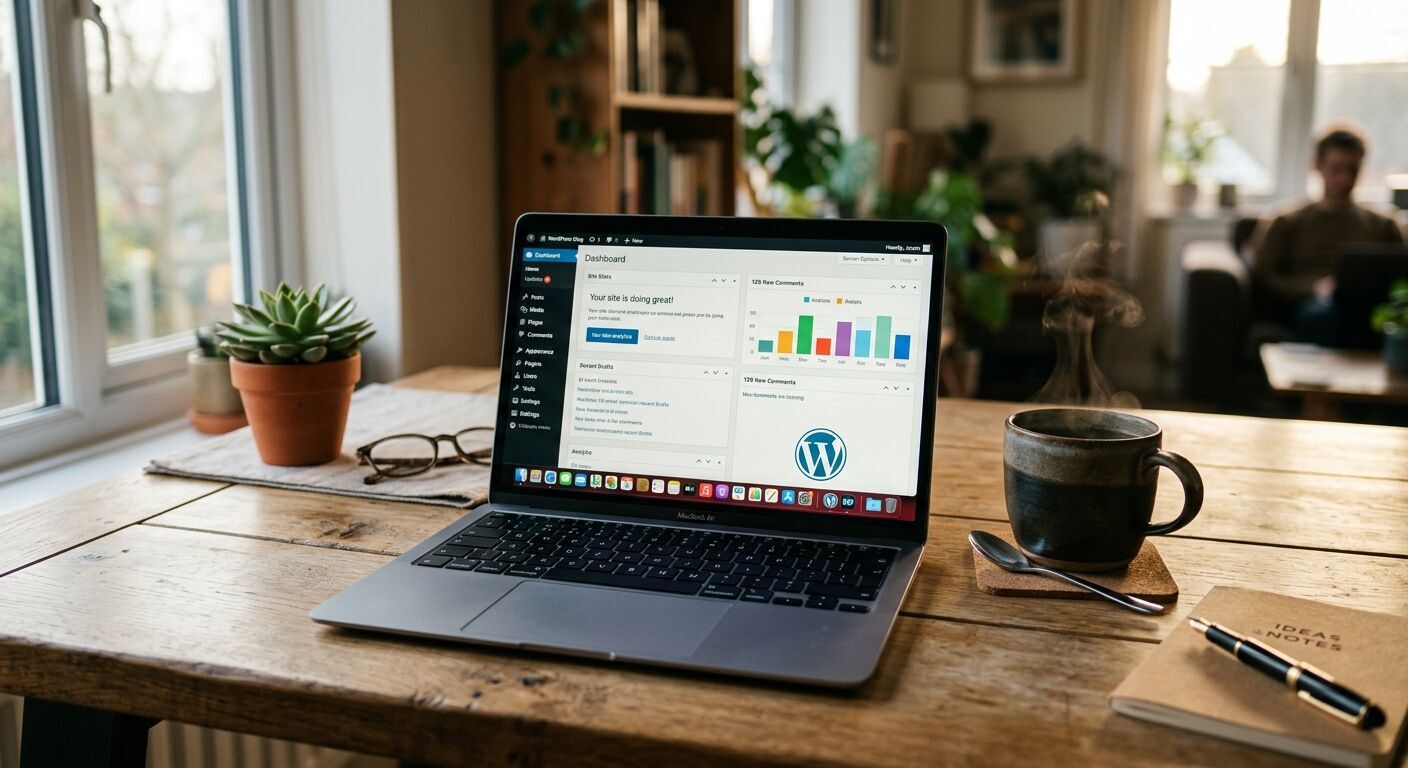
Congratulations, you've installed WordPress! Now it's time to get acquainted with your website's control center: the WordPress Dashboard. This is where you'll manage all aspects of your site, from creating content to customizing its appearance and adding new features. Don't worry if it looks a little overwhelming at first; we'll break down the most important areas.
To access your dashboard, simply go to your domain name followed by "/wp-admin" (e.g., yourwebsite.com/wp-admin) and enter the username and password you created during installation. Once logged in, you'll see a left-hand sidebar with a menu of options. This is your primary navigation.
Let's quickly go over the key sections you'll use most often:
Dashboard: Your home screen, offering a quick overview of your site's activity and links to frequently used areas.
Posts: Where you'll write and manage blog posts, which are dated articles that appear in chronological order.
Media: All your images, videos, and other uploaded files live here.
Pages: For static content like an "About Us" or "Contact" page.
Comments: Manage comments left by visitors on your posts.
Appearance: This is where you customize your site's look (themes, menus, widgets).
Plugins: Install and manage additional features for your site.
Users: Manage user accounts (yourself, authors, etc.).
Settings: Configure core aspects of your site, like its title, tagline, and permalink structure.
Spend some time clicking around and exploring each section. You won't break anything, and familiarizing yourself with the layout will make your website-building journey much smoother. The WordPress Dashboard is designed to be intuitive, and soon you'll be navigating it like a pro.
6. Giving Your Site a Makeover: Choosing and Installing Themes
Now that you're familiar with the dashboard, it's time for the fun part: making your website look amazing! This is where WordPress themes come into play. A theme is essentially a pre-designed template that dictates the visual appearance and layout of your entire website. It controls colors, fonts, page layouts, and how your content is presented to visitors.
There are thousands of themes available, both free and premium (paid). Free themes are a fantastic starting point for beginners, readily available directly from the WordPress theme directory. Premium themes often come with more features, advanced customization options, and dedicated support, which can be a good investment as your site grows. When choosing a theme, consider its:
Design: Does it align with your brand or personal style?
Responsiveness: Does it look good on all devices (desktops, tablets, phones)? This is crucial for user experience and SEO.
Features: Does it offer the functionality you need (e.g., portfolio layouts, e-commerce integration)?
Reviews and Updates: Is it well-regarded and regularly updated for compatibility and security?
To install a theme, navigate to Appearance > Themes in your WordPress dashboard. You'll see any themes that are already installed. To add a new one, click the "Add New" button. You can then search the free WordPress.org theme directory or upload a premium theme you've purchased. Once you find a theme you like, click "Install" and then "Activate." Activating a theme instantly changes your website's appearance. Don't be afraid to experiment with a few to find the perfect fit before you start adding significant content.
7. Supercharging Your Site: The Magic of Plugins
If themes dictate how your website looks, then plugins dictate what your website can do. Plugins are like apps for your WordPress site, extending its functionality and adding new features without you needing to write any code. Want to add a contact form, improve your site's SEO, create a photo gallery, or set up an online store? There's a plugin for that!
The WordPress plugin directory boasts tens of thousands of plugins, both free and premium. This vast ecosystem is one of the most powerful reasons to choose WordPress. You can truly customize your site to meet almost any specific need you can imagine. However, just like with themes, it's wise to be selective. While plugins are amazing, installing too many or poorly coded ones can sometimes slow down your site or even introduce security vulnerabilities.
When choosing plugins, always look for:
Good ratings and positive reviews.
A high number of active installations.
Recent updates (indicating active maintenance and compatibility).
Compatibility with your current WordPress version.
To install a plugin, go to Plugins > Add New in your dashboard. You can search the free directory or upload a premium plugin. Once found, click "Install Now" and then "Activate." After activation, many plugins will add their own settings menu or integrate into existing WordPress menus, allowing you to configure their options. Start with essential plugins for security, SEO, and perhaps a contact form, and then add others as your site's needs grow.
8. Bringing Your Ideas to Life: Creating Pages and Posts
With your theme in place and essential plugins installed, it's time to start filling your website with content! WordPress primarily uses two main content types: Posts and Pages. While they might seem similar, they serve different purposes.
Posts are typically used for timely, blog-like content that is organized chronologically. Think of them as individual entries in a journal or news articles. They usually have a publish date, author, and categories/tags, and they encourage comments. If you're running a blog, a news site, or regularly publishing articles, you'll be using posts frequently. Posts are designed to be dynamic and easily shared across social media, often appearing in a stream on your blog page.
Pages, on the other hand, are for static, evergreen content that doesn't change frequently. Examples include an "About Us" page, a "Contact" page, a "Services" page, or a "Privacy Policy" page. Pages typically don't have dates, authors, or categories, and comments are usually disabled. They form the core structure of your website, providing essential information that visitors can always find regardless of when it was published. You can create a new post by going to Posts > Add New and a new page by going to Pages > Add New.
Both the Post and Page editors in WordPress use the intuitive Block Editor (also known as Gutenberg). This editor allows you to add content in "blocks" – paragraphs, headings, images, videos, lists, and more. You simply click the "+" icon to add a new block, choose the type of content you want, and start typing or uploading. It's a visual and flexible way to create rich content layouts without needing any coding knowledge. Take some time to explore the different block options available; you'll be amazed at what you can create!
9. Organizing Your Content: Menus and Widgets
Now that you're creating content, you need to make it easy for your visitors to find their way around your site. This is where Menus and Widgets become indispensable tools. They help organize your content and provide navigation elements that improve user experience.
Menus are the primary navigation systems on your website. They typically appear in the header or footer of your site and allow visitors to easily jump between your most important pages or categories. To create and manage menus, go to Appearance > Menus in your dashboard. You can create multiple menus (e.g., a primary navigation menu, a footer menu) and populate them with links to your pages, posts, categories, or even custom links. You simply drag and drop items into your menu structure, and then assign the menu to a specific "menu location" defined by your theme (like "Primary Menu" or "Footer Menu").
Widgets are small blocks of content that can be placed in specific areas of your website, known as "widget areas" or "sidebars." Common widget areas include the sidebar next to your main content, the footer, or even specific areas within your theme's layout. Widgets can display a variety of information or functionality, such as:
Recent Posts
Categories
Search Bar
Custom HTML
Image
Social Media Icons
To manage widgets, go to Appearance > Widgets. You'll see available widgets on one side and your theme's widget areas on the other. Simply drag and drop widgets into the desired areas, and configure their settings. Widgets provide a flexible way to add dynamic and useful elements to your site without editing any code.
10. Getting Noticed: Basic WordPress SEO
Having a beautiful website is great, but what if no one can find it? That's where Search Engine Optimization (SEO) comes in. SEO is the practice of optimizing your website to rank higher in search engine results (like Google), making it more visible to potential visitors. While SEO can be complex, there are several basic WordPress SEO practices you can implement right away.
First, ensure your site is "search engine friendly." Go to Settings > Reading in your dashboard and make sure the box next to "Discourage search engines from indexing this site" is unchecked. Also, go to Settings > Permalinks and select "Post name" as your permalink structure. This creates clean, readable URLs that are better for both users and search engines.
Next, focus on your content. Use keywords that people might search for when looking for your content, but integrate them naturally. Write compelling meta descriptions (short summaries) for your pages and posts, as these appear under your title in search results. Optimize your images by giving them descriptive file names and "alt text" (a description of the image) – this helps search engines understand your images and provides accessibility for visually impaired users.
Finally, consider installing an SEO plugin like Yoast SEO or Rank Math. These plugins provide powerful tools to guide you through on-page SEO. They'll give you real-time feedback on your content's readability, keyword usage, meta descriptions, and more, helping you optimize each page and post for better search rankings. Remember, SEO is an ongoing process, but these foundational steps will set you on the right path.
11. Protecting Your Digital Asset: Security Essentials
Building a website is an investment of your time and effort, so protecting it from threats is paramount. WordPress is generally secure, but like any popular software, it can be a target for malicious activity if not properly maintained. Fortunately, there are several essential security practices you can implement to keep your site safe.
First and foremost, always use strong, unique passwords for your WordPress admin account and your hosting account. Avoid easily guessable passwords. Also, make sure to keep your WordPress core software, themes, and plugins updated. Updates often include security patches that fix vulnerabilities, so delaying updates leaves your site exposed.
Consider installing a reputable WordPress security plugin like Wordfence Security or Sucuri Security. These plugins offer a range of features, including firewalls, malware scanning, brute force protection, and security hardening. They act as your website's guardian, actively monitoring for threats and providing tools to mitigate them. Many offer free versions with robust features that are perfect for beginners.
Finally, regularly back up your website. In the unfortunate event that something goes wrong (a hack, a bad update, or user error), a recent backup is your lifeline to restore your site quickly. Many hosting providers offer automated backups, or you can use a plugin like UpdraftPlus to schedule regular backups to cloud storage. Having a reliable backup strategy is perhaps the single most important security measure you can take.
12. Making Your Site Fly: Optimization for Speed and Performance
In today's fast-paced digital world, website speed matters. Visitors expect sites to load quickly, and search engines like Google even factor page speed into their ranking algorithms. A slow website can lead to higher bounce rates, lower conversions, and a frustrating user experience. Optimizing your WordPress site for speed and performance is crucial for online success.
One of the biggest culprits for slow websites is unoptimized images. Before uploading images to your site, make sure they are properly sized and compressed. There are many free online tools and WordPress plugins (like Smush or EWWW Image Optimizer) that can help you compress images without significant loss of quality. Also, consider using a caching plugin such as WP Super Cache or W3 Total Cache. Caching plugins store static versions of your pages, so when a visitor returns, the site loads much faster without having to rebuild the page from scratch every time.
Another factor is your hosting provider. Cheap, low-quality hosting can severely bottleneck your site's performance. Invest in a reputable host that offers good server resources and is optimized for WordPress. Additionally, periodically review your installed plugins and themes. Deactivate and delete any that you're not actively using, as unused components can still consume resources and potentially slow down your site. Keep your WordPress core, themes, and plugins updated, as updates often include performance enhancements. By implementing these practices, you'll ensure your website offers a smooth and speedy experience for all your visitors.
Frequently Asked Questions (FAQ)
Q: Do I need to know how to code to use WordPress?
A: No, absolutely not! WordPress is designed to be user-friendly, allowing you to build and manage a website without writing a single line of code. You can use themes for design and plugins for functionality.
Q: Is WordPress free?
A: Yes, the core WordPress software is completely free and open-source. However, you will need to pay for a domain name and web hosting, and you might choose to invest in premium themes or plugins for advanced features.
Q: What's the difference between WordPress.com and WordPress.org?
A: WordPress.org (which this guide focuses on) is the free, self-hosted version that gives you full control and flexibility over your website. WordPress.com is a hosted service that offers a more managed, but sometimes more restrictive, experience. For maximum control and customization, WordPress.org is generally recommended.
Q: How often should I update WordPress, themes, and plugins?
A: You should update them as soon as new versions are released, especially for security patches. Always back up your site before performing major updates, just in case.
Q: My site is slow. What can I do?
A: Common culprits for slow sites include unoptimized images, too many plugins, a poor-quality theme, or cheap hosting. Consider using a caching plugin, optimizing images, reviewing your plugins, and ensuring you have reliable hosting.
Q: Can I sell products on my WordPress website?
A: Yes! You can easily turn your WordPress site into an e-commerce store using a plugin like WooCommerce, which is the most popular e-commerce solution for WordPress.
Key Takeaways
WordPress is a powerful yet beginner-friendly Content Management System (CMS) that allows you to create diverse websites without coding.
Your website needs a domain name (its address) and web hosting (its home on the internet) to be live.
The WordPress Dashboard is your central control panel for managing all aspects of your site.
Themes dictate your website's visual appearance and layout, while plugins extend its functionality.
Posts are for dynamic, chronological content (like blog articles), and Pages are for static, evergreen content (like "About Us").
Menus and Widgets are crucial for organizing your content and enhancing site navigation.
Basic SEO involves making your site search engine friendly, optimizing content with keywords, and using an SEO plugin.
Website security is paramount: use strong passwords, keep everything updated, install a security plugin, and regularly back up your site.
Optimize your site for speed by compressing images, using caching plugins, and choosing reliable hosting for a better user experience and SEO.

 To install a theme, navigate to Appearance > Themes in your WordPress dashboard. You'll see any themes that are already installed. To add a new one, click the "Add New" button. You can then search the free WordPress.org theme directory or upload a premium theme you've purchased. Once you find a theme you like, click "Install" and then "Activate." Activating a theme instantly changes your website's appearance. Don't be afraid to experiment with a few to find the perfect fit before you start adding significant content.
 Alex Martun